Windows 11 users occasionally encounter the “Something happened and your PIN isn’t available” error (often after updates like the Feb 2026 security patch), where the system forgets or locks out the PIN, forcing a reset or preventing login. This issue is generally caused by corrupted system files, TPM (Trusted Platform Module) misconfigurations, BIOS updates required to match latest Windows security patching (AMD TMP), Windows updates (most often) or broken Ngc folder data.
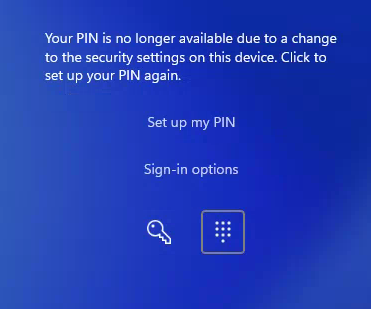
You may see “Your PIN is no longer available due to a change to the security settings on this device. Click to setup your PIN again.”
However doing that just loops you back to the same issue, forcing you to sign in with your full credentials.
This guide provides a universal solution for the “PIN no longer available” loop that has impacted Windows 11 users following the early 2026 update cycle (specifically build 26200.8117).
This error typically occurs when a security update desynchronizes the local Windows Hello database from the hardware’s Trusted Platform Module (TPM).
⚠️ Pre-Flight Checklist
Before modifying system security settings, you must perform these three steps to avoid being permanently locked out:
- Locate your BitLocker Recovery Key: These steps involve modifying the TPM handshake. If your drive is encrypted, Windows may ask for your 48-digit BitLocker recovery key upon reboot. Find it at account.microsoft.com/devices/recoverykey.
- Verify BIOS Settings: Ensure TPM 2.0 (or AMD fTPM / Intel PTT) is set to Enabled in your BIOS/UEFI settings. Also, check your motherboard or manufacturer’s website for any “recent” BIOS updates, as these often contain the necessary microcode to support newer Windows security descriptors. (I would not skip this step otherwise the issue might re appear)
- Confirm Password Access: Ensure you know your full Microsoft Account or Local Account password. You will need it to log back in after the PIN database is cleared.
- Do all Windows Updates fully if possible otherwise do this right after the fix.
The Solution: Universal PIN Reset Script
If your PIN is “forgotten” by Windows every time you reboot (a common issue following the 2026 build 26200.8117 update), the local Ngc folder (the database for Windows Hello) is likely corrupted or locked.
Copy the following code into Notepad, save it as FixPIN.bat, then right-click the file and select “Run as Administrator.”
@echo off
:: Check for Administrative privileges
net session >nul 2>&1
if %errorLevel% neq 0 (
    echo [ERROR] This script requires Administrator privileges.
    echo Please right-click and 'Run as Administrator'.
    pause
    exit
)

echo [1/4] Stopping Security & Biometric Services...
net stop WbioSrvc /y
net stop KeyIso /y

echo [2/4] Resetting the Windows Hello (NGC) Database...
:: Take ownership of the folder to allow deletion
takeown /f C:\Windows\ServiceProfiles\LocalService\AppData\Local\Microsoft\Ngc /r /d y
icacls C:\Windows\ServiceProfiles\LocalService\AppData\Local\Microsoft\Ngc /grant administrators:F /t
:: Force delete the corrupted directory
rd /s /q C:\Windows\ServiceProfiles\LocalService\AppData\Local\Microsoft\Ngc

echo [3/4] Restoring "Sign-in Options" visibility in Settings...
:: Overrides 'Passwordless' requirements that hide PIN settings
reg add "HKEY_LOCAL_MACHINE\SOFTWARE\Microsoft\Windows NT\CurrentVersion\PasswordLess\Device" /v DevicePasswordLessBuildVersion /t REG_DWORD /d 0 /f

echo [4/4] Authorizing Convenience PIN Logins...
:: Ensures Windows allows PINs even if Group Policy was unset
reg add "HKEY_LOCAL_MACHINE\SOFTWARE\Policies\Microsoft\Windows\System" /v AllowDomainPINLogon /t REG_DWORD /d 1 /f

echo.
echo [SUCCESS] System cleaned. Please RESTART your computer now.
echo After rebooting, log in with your PASSWORD and set up a new PIN.
pause
Once this is complete, you will need to reboot as per the instructions.
What This Script Does
- WbioSrvc & KeyIso: Stops the biometric and key isolation services that usually “lock” the PIN files, preventing them from being deleted while Windows is running.
- Ngc Folder Wipe: Removes the specific folder where Windows stores your PIN. By deleting this, you force Windows to create a fresh, uncorrupted database.
- DevicePasswordLessBuildVersion: Sets the value to
0, which restores the missing “Sign-in Options” menu in Windows 11 Settings. - AllowDomainPINLogon: Activates the ability to use a “Convenience PIN,” which bypasses strict hardware requirements that might be failing.
Post-Fix: Resolving Outlook / Office 365 Errors (AADSTS90072)
Because the script above wipes the underlying cryptographic keys that Windows uses for Single Sign-On (SSO), you may find that Microsoft Outlook or Teams throws an AADSTS90072 error (stating your account “does not exist in tenant”).
This happens because Office is trying to use an old, fragmented login token. To force a clean connection to your new keys, follow this workaround:
- Open Microsoft Word (or Excel).
- Go to File > Account (or just Account in the bottom left).
- Under the User Information section, click Sign out.
- Pro-Tip: You may need to click “Sign out” up to 3 times to fully sever the connection if the system is stubbornly holding onto the old token.
- Completely close Word and reopen it.
- Sign back in with your email and password.
- Once signed in, look under the Connected Services section on that same Account page and verify your cloud services (like OneDrive or SharePoint) are connected correctly.
- Open Outlook. The token broker will now use your fresh credentials, and the error will be gone.
Hopefully this fix helps you if you have reached this page!