UniFi SuperLink Environmental Sensor Setup
Need help setting up the new Ubiquiti Environmental Sensor or the SuperLink Hub? Here is your quick SuperLink user guide! UniFi SuperLink & Environmental Sensor: Quick Setup Guide The Ubiquiti…
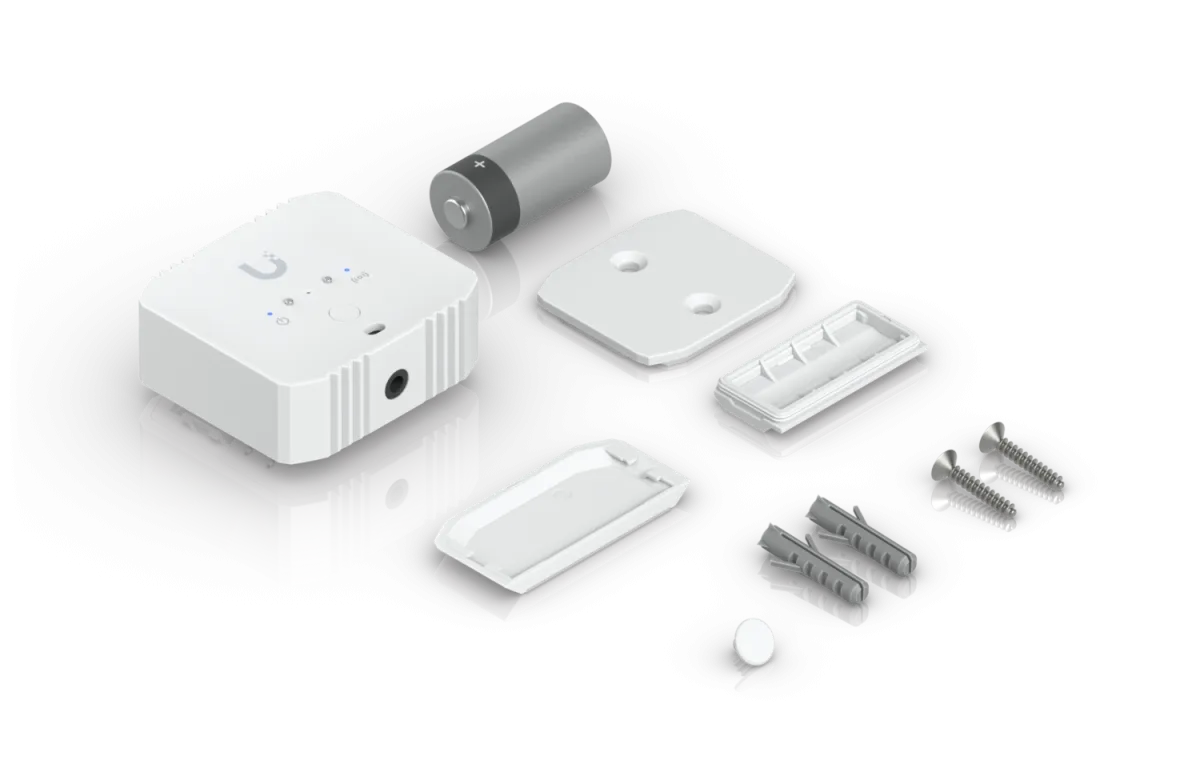
Need help setting up the new Ubiquiti Environmental Sensor or the SuperLink Hub? Here is your quick SuperLink user guide!
UniFi SuperLink & Environmental Sensor: Quick Setup Guide
The Ubiquiti SuperLink system is a powerful way to monitor environments across long distances. Whether you're tracking temperatures in a server room or a remote walk-in freezer, follow this guide to get your system online and optimized.
Quick Start: 4-Step Setup
- Adopt the SuperLink Hub: Plug your SuperLink Hub into your network. Open the UniFi Protect app and adopt the hub into your system.
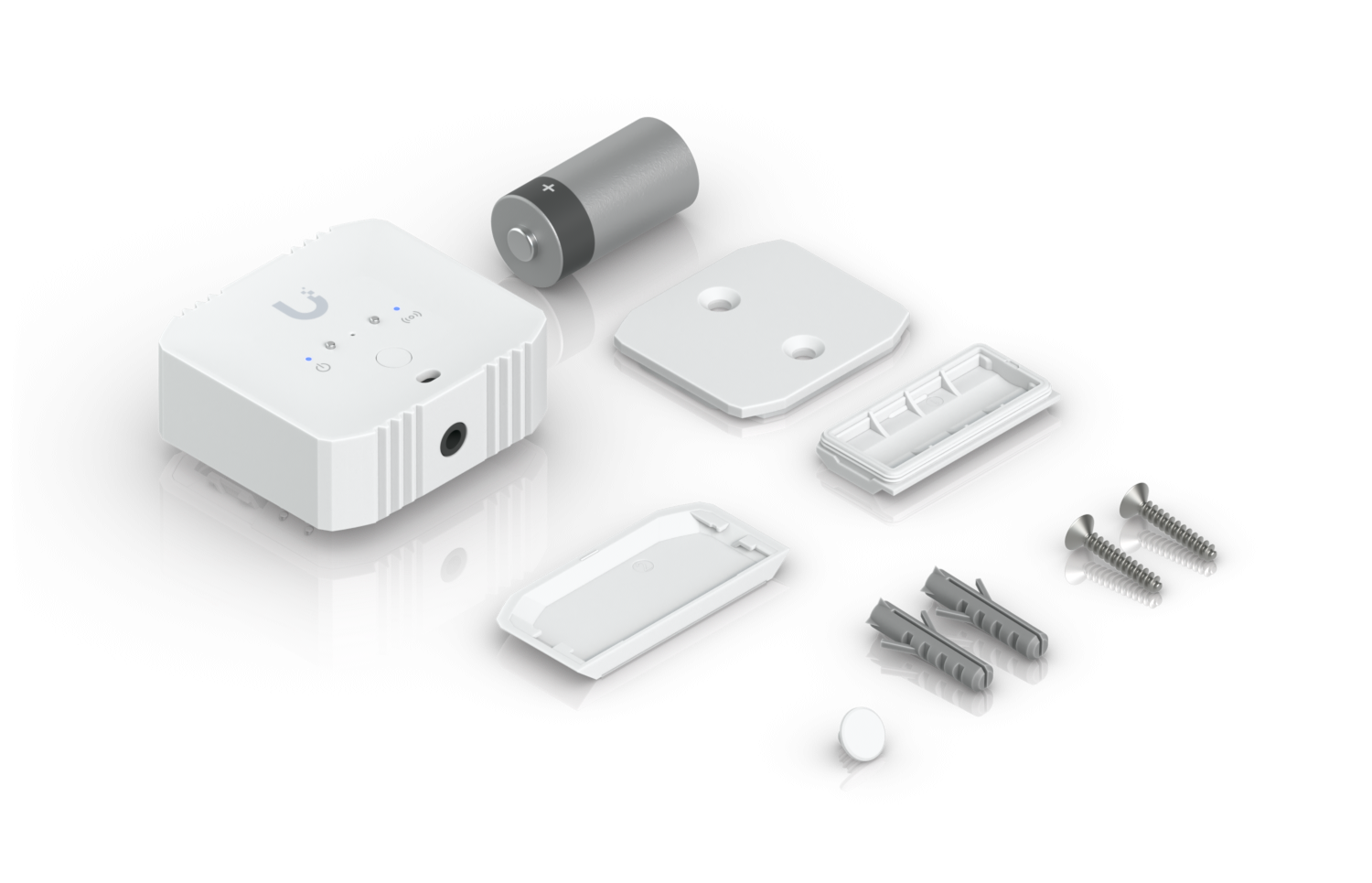
- Activate the Sensor: Remove the battery pull tab from the USL-Environmental Sensor to power it on.
- Automatic Discovery: The sensor should automatically appear as a "pending adoption" device within the Protect app. Simply click Adopt.
- Configure Settings: Once adopted, you can adjust the update intervals, temperature thresholds, and notification triggers in the device settings.
Troubleshooting: What to do if the Sensor Won’t Adopt
If your sensor isn't appearing or shows as "Offline," look for the static LED on the front left (power icon). If it is on but not connecting, try these fixes:
Fix 1: Check Your Firmware Versions
The most common cause of adoption failure is outdated software.
- UniFi Protect: Ensure you are running version 6.1.68 or higher.
- SuperLink Hub: Once Protect is updated, check the SuperLink Hub itself for any pending firmware updates in the Control Plane settings.
Fix 2: Perform a Hard Reset
If the sensor is "stuck," you can force it back into pairing mode:
- Locate the small reset pinhole on the back of the sensor.
- Use a paperclip to press and hold the button for 10 seconds until the front light flashes.
- Keep the sensor within 2–3 meters of the SuperLink Hub during this initial re-pairing.
Fix 3: Reboot and Refresh
If the app still isn't seeing the device, ensure your mobile app is up to date, then manually power-cycle the SuperLink Hub. Note: Ensure no firmware updates are currently in progress before pulling the power.
Real-World Range & Performance Testing
The SuperLink uses long-range wireless protocols, but physical obstacles—especially metal—will impact performance.
Pro Tip: For testing, set the sensor to 30-second update mode to get real-time signal feedback. Remember to switch back to 5-minute mode afterward to preserve battery life.
Expected Range Results:
| Environment | Reported Range / Distance | Signal Quality & Real-World Notes |
| Open Field / Line of Sight | 2km (1.2 miles) | Verified manufacturer spec; users report "rock solid" connection at 500m+ without interference. |
| Commercial / Large Facility | 150m – 300m | Covers 3-story buildings; signal drops to -87dBm when passing through multiple concrete/steel floors. |
| Typical 5-Bedroom House | Full Coverage | Reliable across 60–100ft and 4+ internal walls with signals around -68dBm. |
| Detached Structures | 50m – 140m | Success reported with sensors in mailboxes or sheds passing through 3+ exterior walls and trees. |
| Industrial Metal Freezer | 15m – 20m | Critical: Metal kills signal. Users report "Poor" or dropping signals at 50ft (15m) if enclosed in heavy metal. |
| Obstruction: 1 Concrete Wall | ~20dB loss | Sub-GHz penetrates better than 2.4GHz, but a single concrete wall can still drop signal significantly. |
Check your signal status on the console dashboard:
If signal is -90 dBm or worse (-91, -99 or more) then this unit will fluctuate and drop off randomly.
If signal is -87 to -89 dBm this may hold steady but if it rains or there is any interference it will drop.
If signal is -84 to -86 dBm possibly stable but ideally add a long range antenna for extra stablity.
if signal is under -80 dBm then you are good.
Optimization Tips:
Metal Obstacles: If monitoring a walk-in freezer, try to mount the SuperLink as close to the unit as possible, or even on the exterior roof of the unit to avoid signal bounce.
Antenna Orientation: The SuperLink base station is omni-directional but the antenna on the sensors may give better coverage if rotated to see which direction gives optimal signal.
Seasonal Interference: In outdoor/farm settings, remember that foliage kills signal. A connection that works perfectly in winter may fail in summer once the trees are full of leaves.