IT & Security Policy for SMEs using Microsoft 365
2026 Edition · For internal business use by organisations and their staff
If your staff have signed a previous version, the following points are new or significantly strengthened and are worth drawing to their attention:
- Passkeys come first. Where a service offers a passkey, it should be used in preference to a password — and the weaker old login methods should be removed once it is in place, since an account is only as strong as its weakest enabled sign-in method. Passkeys cannot be phished, guessed or reused.
- MFA is no longer optional anywhere it is offered. Under Cyber Essentials 2026, having MFA available but switched off is an automatic certification failure — paid or free. Use the strongest method available: a passkey or authenticator app in preference to SMS text codes.
- QR-code phishing ("quishing") and real-time MFA-bypass ("adversary-in-the-middle") attacks are now explicitly covered, because they defeat ordinary MFA.
- Phone calls and help-desk requests must be verified through a separate trusted channel before resetting a password, approving MFA, or granting access — even if the caller sounds like a colleague. AI voice-cloning makes this essential.
- Responsible use of AI tools is now a section in its own right, covering unapproved AI apps, extensions and "free" data-harvesting sites; agentic "co-working" assistants; confidential data and "shadow AI"; AI call/meeting recording and transcription; and AI-generated scams.
- Self-provisioning of devices is explicitly prohibited — you may not sign into Windows, or add your work account to any device, that IT has not set up for that purpose.
- Clear first-response steps are set out for the first minutes after a suspected compromise: disconnect from the network, do not power the device off, change passwords from another device, and call IT.
- The 14-day patching rule is now a hard requirement, mirroring the Cyber Essentials automatic-fail condition.
- Access & Security (sections 1–7)
- Acceptable Use of Company Resources (sections 8–15)
- Data Handling & Protection (sections 16–23)
- Mobile & Personal Device Security (sections 24–27)
- Software & System Management (sections 28–31)
- Offboarding & Return of Company Assets
- Acknowledgement & Signature
Part IAccess and Security: The First Line of Defence
The security of our company's IT infrastructure relies on controlled access and on empowered employees serving as our first line of defence. Failure to comply can result in legal action and significant cost to the company through regulatory fines, service fees, and the loss of intellectual property.
1. Account Structure & Identity
Unique identity: Every user must have their own unique username and password. Shared accounts (e.g. office@, admin@) are strictly prohibited for individual use.
Account separation:
- Standard users: All day-to-day business activity (email, web browsing, document creation) must be performed using a "Standard" user account.
- Administrator accounts: Staff with administrative privileges must have a separate, dedicated account (e.g.
admin_jdoe) used only for administrative tasks such as installing software or configuring systems. - Prohibition: You must never browse the web or check email while logged into an Administrator account.
Adding users: Staff may never add another staff member to a PC that has not been set up and authorised by IT for that specific user. Doing so can cause security issues, incorrect application configuration, loss of data, misconfigured privileges, backup failures, access problems and more.
Company PCs and laptops must only be set up and enrolled by IT. You must never sign into a Windows PC, or add your work / Microsoft 365 account to a device, that IT has not prepared and authorised for that specific purpose.
Signing yourself into an un-provisioned device creates an unmanaged profile that bypasses our security configuration, disk encryption, application settings, update management and backup. The result is that your data may not be protected or backed up, and the device will not meet the standard required to access company systems. This applies equally to brand-new devices, second-hand devices, personal computers, and any device that has not been formally issued to you. You are also not permitted to configure your own laptop or PC from new — IT will do this for you.
2. Securing Your Accounts: Passkeys, Passwords & 2FA
This applies to all accounts used for work — internal company systems (Microsoft 365, Windows login) and any external websites or services. Your credentials are the primary key to company data, and securing them is your most important responsibility. If you do not secure your accounts with passkeys / 2FA / MFA, you are failing the single most important security measure there is.
Secure your email accounts first, then any site you can purchase from and any financial sites, and then continue with the rest. Never use the same password twice, and make every password random, as set out below.
A. Credential strength & uniqueness
- Passkeys come first. Wherever a service offers a passkey, use it. A passkey (unlocked with your fingerprint, face, or a device PIN and backed by your device's secure hardware) cannot be phished, guessed, intercepted or reused, and is now the preferred way to sign in.
- Once a passkey is working, remove the weaker login methods. A passkey only protects an account if an attacker can't bypass it by signing in with the old password or a weaker code instead — an account is only as strong as its weakest enabled sign-in method. So, where a service allows it, remove the password and any SMS / email codes once your passkey is set up. Do not lock yourself out: only do this once you have a reliable way back in — ideally a second passkey on another device, or recovery codes saved in ProtonPass — and follow IT's guidance. For Microsoft 365, IT removes the weaker methods centrally (blocking legacy sign-in and requiring phishing-resistant authentication), so you do not need to.
- Passwords — minimum standard. Where a password is still used, it must be at least 12 characters. We strongly recommend letting your password manager generate a random 16+ character password for every account; length matters more than anything else.
- The few passwords you must remember (your Windows login and your password-manager master password) should be a long passphrase made of at least three or four random, unrelated words — the NCSC "three random words" method (for example, four unconnected words run together). This is both very strong and memorable. Your master password must be long, unique, and never reused anywhere.
- Uniqueness: Use a completely different, unique credential for every single website and service. Reusing a password — even for a "non-critical" site — is a serious security violation.
- Routine changes are not required. Do not change passwords on a fixed schedule. In line with current NCSC guidance, you only need to change a password if you suspect it has been compromised.
- Compromise: If you suspect a password has been compromised (e.g. you clicked a phishing link), change it immediately and notify IT.
B. Mandatory Two-Factor Authentication (2FA / MFA)
- 2FA / MFA (or a passkey) must be enabled on all company systems and on any external service that supports it (Microsoft 365, VPNs, payroll, banking, and so on). Under Cyber Essentials 2026, leaving MFA switched off where it is available — whether free or paid — is now an automatic certification failure.
- Choose the strongest method available. A passkey or hardware security key is best, followed by an authenticator app. Avoid SMS text codes where a better option exists — text codes can be intercepted, and are vulnerable to "SIM-swap" fraud.
- Never disable, delete or remove 2FA / MFA or its authenticator app from your mobile device once it is enabled.
- MFA-fatigue warning: Never approve an MFA prompt (app notification or SMS) that you did not personally start. If you receive an unexpected prompt, deny it and report it to IT immediately.
Entering your password and MFA code into a fake login page can still hand attackers access. Modern phishing kits act as an invisible "middle-man" (an adversary-in-the-middle attack): they pass your details to the real site in real time and steal your live session — so the criminal is logged in as you even though you typed everything correctly, and often no "failed login" warning is ever generated.
This is why you should: prefer passkeys (which defeat this attack); always check the website address before logging in; and never log in via a link or a QR code sent in a message. Also be suspicious if a login suddenly demands a weaker method than usual (e.g. a text code when you normally use the app) — report it.
C. Secure credential management
All passwords must be generated, stored and managed using one of the IT-approved methods below:
- ProtonPass — our preferred, IT-sanctioned password manager for everyday use. When you set it up, you must add the IT Department as your emergency / recovery contact.
- The Microsoft Edge password manager, synced to your Microsoft 365 profile, is acceptable for credentials used within the browser.
- An alternative IT-approved manager (for example 1Password) may be used where IT has specifically authorised it. Anyone with administrative access must use a dedicated password manager, not browser storage alone.
Prohibited storage: Do not write passwords on sticky notes, keep them in unsecured files (e.g. passwords.docx), or use any other unapproved method.
Your responsibility: You are responsible for all activity carried out using your credentials. Passwords and 2FA codes must never be shared with anyone.
3. Lock Screens & Physical Security
- Locking: Lock your computer and mobile devices whenever you step away, even briefly. On Windows, press
Windows + LorCtrl + Alt + Deland select "Lock". - Auto-lock: Set a screensaver to auto-lock after 2–5 minutes, or use a mobile "dynamic lock" (walk-away lock).
- Clear-desk policy: Sensitive documents and unlocked devices must not be left visible on desks when the workspace is unattended.
- Vehicle security: Devices left in vehicles must be locked in the boot and not visible from outside.
4. Report Lost or Stolen Devices Immediately
Any company-issued or personal device used for work that is lost or stolen must be reported to IT immediately (within 2 hours) so that a remote-wipe command can be issued.
5. Beware of Phishing and Social Engineering
Maintain heightened vigilance over unsolicited and seemingly familiar communications — emails, text messages, QR codes and phone calls — that request sensitive information or action. Report anything suspicious to IT immediately.
According to IBM's Cost of a Data Breach Report 2025 (UK edition), the average total cost of a data breach for a UK organisation is approximately £3.29 million — covering investigation, legal fees, regulatory fines (GDPR), lost business and crisis management. The same report found that phishing was the single most common way in, and that attackers used AI in roughly one in six breaches to power phishing and deepfakes.
This is not theoretical. In 2025, several major UK retailers (including Marks & Spencer, the Co-op and Harrods) were breached after attackers talked their way past IT support to reset credentials — proof that the human, not the firewall, is now the target.
The "human firewall" and the cost of getting it wrong
Our technical safeguards are robust, but your critical thinking is our primary defence — no technical barrier can stop a user who unknowingly grants access to a bad actor. Be aware of the consequences of negligence:
- Investigation costs: Cyber-forensic investigations are not covered by standard IT support and can be charged directly to your department.
- Operational loss: The figures below exclude losses from financial theft or the loss of intellectual property, which can be far more severe.
| Severity of breach | Scope of investigation | Estimated fee |
|---|---|---|
| Minor incident | Analysing a single compromised laptop or email account (BEC) | £2,500 – £6,000 |
| Medium incident | Ransomware or a breach affecting a server and multiple endpoints; requires network analysis to find "patient zero" | £15,000 – £45,000 |
| Major incident | Full network compromise, data-exfiltration verification, and regulatory (ICO) reporting assistance | £60,000 – £150,000+ |
For an individual user, falling for a phishing email can lead to: theft of saved and typed passwords (email, banking, social media); exposure of confidential documents, photos and files taken straight from the system; surveillance via periodic screenshots or webcam capture; and use of the machine as a foothold to attack other devices on the same network.
This in turn can lead to company-wide infection. Modern attackers use AI to write undetectable malware and to perfectly mimic a reply within one of your existing email threads — continuing a real conversation so that nothing looks suspicious, while quietly inserting a new malicious link to infect your contacts.
AI voice cloning & deepfakes
Threat actors now use AI to replicate human voices. These "deepfakes" can mimic a colleague's tone and speaking style almost perfectly. Do not rely on voice recognition to verify who is calling — always confirm unusual requests through a separate, trusted channel.
Treat a QR code with exactly the same suspicion as a link. Do not scan a QR code from an email, PDF, unexpected letter, or a sticker / poster in order to "log in" or "verify" an account.
Attackers increasingly use QR codes precisely because scanning moves you from your protected work PC onto a personal phone — slipping past company email filtering, web filtering and endpoint protection. As with the middle-man attacks above, these scams frequently end with your session being hijacked even though you entered your password and MFA correctly, and usually with no warning. If a genuine service asks you to scan a code, check with IT first.
Never reset a password, approve an MFA prompt, install anything, or grant access because someone phoned, emailed or messaged you — even if they sound like a colleague, your manager, or "IT". Verify every such request through a separate, trusted channel (in person, a known internal number, or the Signal app). This single habit would have prevented several of the largest UK breaches of 2025.
Browser, email and download practices
- Browser: The required browser is Microsoft Edge (no other browsers are permitted), synced to your 365 profile, with Google as the search engine. You must be able to tell a paid advertisement apart from a natural search result, and you must never click on search-result adverts — they can be faked to redirect you to a malicious site.
- Security warnings: Never bypass a browser security warning (e.g. "This site is unsafe") to reach a website.
- Extensions: No browser extensions are permitted except the single IT-approved antivirus extension — no voucher, shopping, ad-blocking, grammar-helper or any other extensions.
- Email links & attachments: Do not click links or open attachments in any email, even if it appears to be from another staff member, accounts, or the company owner. If an email, document or PDF asks you to "log in" or to paste a "code" to view a file — that is a major red flag. Always verify the request first via a separate, secured channel (Signal).
- Software & remote support: Do not install any software, or grant remote support to any third-party company, even one you recognise.
- Executables: Some emails block executable attachments (
.exe,.vbs). Do not bypass this by renaming files, and never run files held inside a.zip/.rararchive. - Unusual financial requests: Do not action requests for money transfers, gift cards, unknown invoices, loans, vouchers or any other payments that appear to come from staff, the owner / director, or external suppliers. AI lets scammers fake anyone's voice, write in anyone's style, and call from numbers you recognise.
- Verbal verification: Confirm in person, or via a trusted outbound number using a method that cannot easily be faked — ideally the Signal app — before setting up or amending any payee details, transferring funds, making payments, or handling sensitive data. No matter how "urgent", "confidential" or sympathetic the request ("I'm sick / busy / in a meeting") — do not do it.
If you feel you are not IT-literate, not up to date with what AI can now do, or you do not understand any of this, please ask your manager or director to arrange training.
6. Secure Wi-Fi & Network Usage
- Public Wi-Fi (cafés, hotels, trains) must be treated as hostile and must not be used to access sensitive company data directly. When working remotely, use a secure, password-protected network or the company-provided VPN. Do not use third-party VPNs.
- Home security: Staff working from home must secure their router with a strong, unique admin password (not the default printed on the sticker, where changeable) and keep its firmware up to date.
- Internal Wi-Fi: Office Wi-Fi passwords must never be shared. Use the designated Guest Wi-Fi for any third-party access.
7. Principle of Least Privilege
You will only be granted access to the data and systems necessary for your job. If you find you have access to a system or data that you believe you should not, report it to IT immediately.
Part IIAcceptable Use of Company Resources
All company-provided resources and systems — office computers, mobile phones, desk / portable phones, VoIP phones and apps, ordinary calls, and internet usage — are subject to monitoring. No personal calls should be made on business devices. Monitoring is carried out to ensure policy compliance, protect against security threats, and maintain system integrity. You should have no expectation of privacy when using company equipment or networks (a legally accepted position in UK law).
8. Business Use is the Priority
Company IT resources are for business purposes. While minimal personal use may be acceptable, using company devices or accounts for significant personal activity (running a personal business, extensive social media, or storing a large personal media library) is strictly prohibited.
9. Prohibition of Illegal Activities
Company resources must not be used for any illegal activity, including downloading copyrighted material, harassment, unauthorised VPN use, accessing gambling sites, or accessing inappropriate or explicit content of any kind.
10. No Unauthorised Software or System Changes
- Installation: You may not install any software (including remote-support tools, AI desktop apps and agentic "co-working" AI assistants), games, trialware, or browser add-ons (including AI "helpers") without prior IT approval. See also section 14.
- Bloatware: You may not install unnecessary software.
- Browsers: You may not install alternative browsers or change the IT-configured default.
- SSO / sign-up: You may not use your work credentials to sign up for, or grant access to, unauthorised third-party systems.
- Device access: You may not sign into another person's device, or into any device IT has not pre-approved and set up for you (see section 1).
- Configuration: You may not configure your own laptop or PC from new.
- Auto-play: Auto-Play / Auto-Run for USB drives and CDs is disabled to prevent malware execution. Do not re-enable it.
- Firewalls: The software firewall (e.g. Windows Defender Firewall) must remain active on all network profiles (Domain, Private and Public).
11. Off-Site Equipment Policy
When any company equipment (laptops, mobile phones, motor vehicles) is taken off-site:
- It must be formally signed out.
- It must not be used by any third party, including family, friends or children.
- No additional software may be installed, nor remote access granted, without explicit IT approval.
- It should be kept off-site only for as long as is absolutely necessary for your work.
- GPS tracking, where available, must be enabled and never disabled.
Ownership and responsibility: All equipment remains company property. Failure to return equipment is treated as theft.
12. Responsible Internet and Application Usage
- Prohibited content: Using any device on the company network to access, download or distribute explicit, offensive or objectionable material is strictly forbidden.
- Downloads: Do not download executable files (
.exe,.msi,.bat) from websites or emails. Be aware that everyday file types can also carry harmful links or content — including.doc,.docx,.xls,.xlsx,.vbsand.pdffiles. Do not enable macros or "editing" in a document unless you are certain it is genuine. - Productivity: Browsing social media or non-work websites, or using personal apps during work hours, is prohibited except during designated breaks. This includes any deliberate time-wasting.
- Network performance: Excessive personal internet usage that affects network performance is not permitted.
13. Professional Digital Conduct
- Communications: All communication on company platforms must be professional and respectful.
- Social media: Be mindful of your social-media presence (text, video or images). Do not post confidential company information, never post about another staff member without their permission, and never post content that could damage the company's reputation — this may result in legal action.
14. Responsible Use of Artificial Intelligence (AI) Tools
AI assistants are valuable tools, and we encourage their sensible use. The rules below exist to protect company and customer data — not to ban AI.
- Approved tools only — and that means apps, extensions, websites and devices, not just chatbots. Use only AI tools IT has vetted and approved (for example Microsoft 365 Copilot with commercial data protection, or another IT-sanctioned enterprise tool). Do not install AI desktop or mobile apps, add AI browser extensions or "helpers", or sign up to AI websites for work, without prior IT approval — this also follows from section 10. If you are not sure whether something counts as an AI tool, assume it does and ask first.
- Be very wary of "free" or "all-in-one" AI services. Many sites and apps offering free or cheap access to several AI models exist mainly to harvest what you put into them — logging it, selling it to third parties, or using it to train models — even when they look professional and genuinely return AI answers. Looking legitimate is not the same as being safe. Only AI services whose contracts and data-protection terms IT has reviewed may be used for work.
- Agentic and "co-working" AI assistants need specific clearance. AI tools that can see your screen, read your files, control other applications, or act on your behalf carry far broader risk than a chat window — they can expose anything visible or reachable on your device. Never install one, or connect one to a company account or company data, without specific IT authorisation and setup.
- Never feed confidential data into unapproved AI ("shadow AI"). Do not paste, upload or type customer data, personal or special-category data, passwords, financial details, source code, contracts, or any confidential company information into a public AI tool. Anything you enter into an unapproved service may be stored, used to train the model, or exposed. IBM's 2025 research found that unsanctioned "shadow AI" was a significant and costly driver of data breaches, and that almost every AI-related incident occurred where proper access controls were missing.
Do not use any app, bot, browser tool or device to record or transcribe calls, video meetings, voice notes or dictation with AI unless IT has authorised that specific tool — and, where relevant, the specific equipment — for that purpose. This includes meeting "note-taker" or assistant bots that join calls (often automatically from a calendar invite), cloud dictation, call-recording features, and standalone AI voice recorders.
There are two reasons. First, these tools send an entire conversation — frequently containing customers' and colleagues' personal data, and sometimes confidential or sensitive information — to a third party. Second, recording other people carries legal and data-protection obligations (those present must usually be informed, and there must be a lawful basis), which the company has to manage centrally. In regulated sectors such as healthcare, veterinary and finance, these recordings and transcripts may contain clinical or otherwise sensitive personal data and need particular care — never capture them with an unauthorised tool. If you need a transcript or recording, ask IT for an approved way to do it.
- Always check AI output. AI can be confidently wrong ("hallucinations"). Verify facts, figures, code, and any legal or financial content before you rely on it or send it on. You remain fully responsible for anything you produce with AI assistance.
- AI is also a weapon. Attackers use AI to write flawless phishing emails, clone voices, and generate deepfake audio and video. This is precisely why the verification habits in section 5 matter more than ever.
- No covert or harmful use. Do not use AI to impersonate colleagues, to produce content that breaches confidentiality or copyright, or to make decisions about people (e.g. in HR) without human oversight. Follow any IT guidance on labelling AI-assisted work where that is required.
15. Respect for Copyright and Intellectual Property
Unauthorised copying or distribution of copyrighted material is prohibited.
Part IIIData Handling and Protection: Safeguarding a Critical Asset
Protecting company and customer data is a legal and ethical obligation.
16. Data Classification
Be aware of the sensitivity of the data you handle, and treat it accordingly.
17. Secure Data Storage
- Approved storage: Sensitive data must only be stored on company-approved servers, approved cloud storage (e.g. OneDrive for Business, SharePoint), or encrypted devices.
- Prohibited storage: Storing sensitive data on personal devices, personal cloud drives (personal Dropbox, Google Drive, iCloud), unapproved services, or unencrypted USB sticks is strictly prohibited.
18. Data Encryption
All company laptops that leave the business for any period, and all mobile devices and USB drives that store or access sensitive data, must be encrypted (e.g. BitLocker, FileVault).
19. Secure Data Transfer
- When sending sensitive data, use encrypted email or another secure transfer method approved by IT.
- Personal email: Do not email sensitive or business data to a personal email address.
- USB: Do not copy company data to any USB or portable device, and do not insert any USB device into any computer.
20. Proper Data Disposal
Printed documents containing sensitive information must be shredded. Electronic files must be securely deleted.
21. Regular Data Backups
You are responsible for ensuring your critical work files are saved in designated network locations or assigned drives (e.g. OneDrive, SharePoint) for regular backup by IT. Do not assume that Desktop, Music, Videos, C:\ or any other folder is backed up — ask if unsure. Do not save data to an external drive or USB stick, for both security and reliability reasons.
22. Prohibition of Unauthorised Data Sharing
Company data must not be shared with unauthorised individuals or external parties. This is a strict legal requirement.
23. Reporting Security Incidents & Data Breaches
It is the duty of every employee to report suspected security incidents immediately. You must report:
- Suspected phishing attacks, clicked links, or scanned QR codes.
- Lost or stolen devices.
- Accidental data leaks (e.g. sending an email to the wrong person).
- Unusual system behaviour (pop-ups, ransomware notes, unexpected MFA prompts).
- Any suspected or confirmed data breach, no matter how small.
If you clicked a phishing link, entered your details on a suspicious site, approved an MFA prompt you shouldn't have, or see a ransomware note:
- 1. Disconnect from the network — unplug the network cable and switch off Wi-Fi.
- 2. Do not switch the device off, and do not try to "clean" or fix it yourself, unless IT tells you to — this can destroy evidence needed to contain the incident.
- 3. From a different, trusted device, change the affected passwords — your email password first.
- 4. Contact IT immediately.
- 5. Do not delete anything or hide what happened. Fast, honest reporting dramatically reduces the cost and spread of an incident — you will never be in trouble for reporting promptly.
Part IVMobile & Personal Device Security
24. Mandatory Passcodes / Biometrics
All mobile devices used to access company data must be secured with a minimum 6-digit PIN or strong biometric authentication (Face ID / Touch ID). Pattern unlocks or 4-digit PINs are insufficient.
25. Personal Device Security Requirements (BYOD)
Personal devices used to access company data must meet these standards:
- Supported OS: The device must run a currently supported operating system. Devices stuck on old, unsupported versions must not access company data.
- No jailbreaking: The device must not be jailbroken or rooted.
- Clean status: It must not contain illegal software, peer-to-peer (P2P) clients, or VPN / hacking tools.
- No sideloading: Apps must only be installed from official sources (Google Play, Apple App Store). Sideloading is prohibited.
- Remote access: Unauthorised third-party remote-access software is prohibited.
- Antivirus: An IT-sanctioned antivirus app must be installed and running. (This is mandatory for all computers and Android devices; iPhones and iPads are exempt.)
- Updates: The operating system and all apps must be kept up to date.
Note: a personal phone used only for native calls, texts or an MFA app is usually out of scope; but if it accesses company email, files or services, it falls under this policy.
26. Approved Applications Only
Only company-approved applications should be used for work-related tasks on any company or personal device.
27. Remote Wipe & Lock Capability
IT must have the capability to remotely lock or wipe company data from any device in case of loss or theft.
Part VSoftware and System Management
Keeping company systems healthy requires your cooperation.
28. Adherence to Software Licensing
All software must be properly licensed. Use of pirated software is strictly prohibited.
29. System and Software Update Management
- IT-managed updates: You must allow the automatic installation of updates pushed by IT.
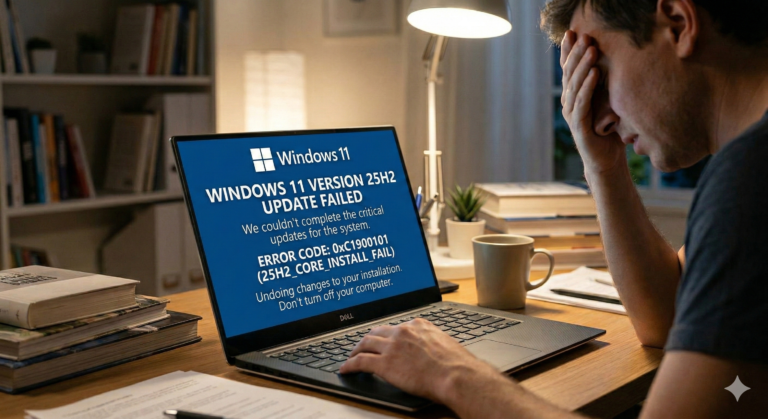
- The 14-day rule: When prompted to restart for updates, do so as soon as possible and certainly within 14 days of the update's release. High-risk and critical security updates applied later than this are now an automatic-fail point under Cyber Essentials, and delaying them exposes the organisation to serious, preventable risk.
- User-initiated updates: You may not manually upgrade software without prior IT approval.
- Unsupported ("End of Life") software: Software or operating systems no longer supported by the vendor must not be used and will be removed. Unsupported software stops receiving security fixes and is a common route in for attackers — this includes operating systems, applications, and the firmware on devices such as routers and firewalls.
- Outlook: At this time, do not switch to the "New Outlook" toggle. Continue using the standard, IT-deployed Microsoft Outlook (Classic) unless instructed otherwise by IT.
30. Maintenance
- Weekly reboots: Restart your PC once a week (ideally on Friday) — click Start → Power → Restart (not Shutdown).
- Mobile updates: Apply mobile operating-system updates when available, and at least monthly.
31. Working with the IT Department
- Reporting problems: Report any IT issue to the helpdesk in a timely manner.
- Security training: Take part in all mandatory cyber-security awareness training and phishing simulations.
- Audits: Cooperate fully with any IT audit.
Part VIOffboarding and Return of Company Assets
The following are mandatory on cessation of employment, or in the event of company liquidation.
- Preservation of access: It is strictly prohibited for an employee to change passwords, delete accounts, or take any action that would prevent or obstruct the company owner or IT from accessing any company system, account or data. All credentials and systems must be left fully intact and accessible.
- Immediate return of assets: On termination of employment for any reason (including resignation), all company equipment, data and assets must be returned immediately.
- Disclosure of company data: You must declare any company data stored on personal devices or in personal accounts. This data must be securely transferred back to the company and/or permanently erased under IT's guidance.
IT & Security Policy — Acknowledgement
By ticking these boxes, I confirm that I have read, understood, and agree to comply with the following key points of the Company IT & Security Policy.
Access & Credentials
- 1. I will use a unique password of at least 12 characters (or a passkey) for every device, website and system, and I will never reuse a password. Where I must remember a password, I will use a long passphrase of three or more random words.
- 2. I will use passkeys wherever they are offered, in preference to passwords, and — with IT's guidance and a safe way back in — I will remove weaker sign-in methods once a passkey is working.
- 3. I will never use an Administrator account for day-to-day email or browsing.
- 4. I will enable 2FA / MFA on all accounts, will choose the strongest method available, and will never approve a prompt I did not start (I will report it).
- 5. I will never disable 2FA / MFA or delete the authenticator app from my device.
- 6. I will store passwords only in ProtonPass, the Edge / 365 password manager, or another IT-approved tool — and never on sticky notes or in unsecured files. Anyone with admin access will use an approved password manager.
- 7. I will never share my passwords or 2FA codes with anyone, especially if prompted by a phone call, email or message containing a link.
- 8. I will always lock my screen (
Win + L) when stepping away, and keep a clear desk. - 9. I will report any lost / stolen device or suspected breach to IT immediately.
Online Security & Browsing
- 10. I will use only Microsoft Edge for work unless IT specifically arranges otherwise.
- 11. I will not install any browser extension unless IT has approved it after security vetting.
- 12. I will not click paid adverts in search results, will not bypass browser security warnings, and will never scan a QR code in a message in order to log in.
- 13. I will treat all emails with suspicion (even from known staff) and report phishing attempts to IT.
- 14. I will verify any email link, attachment, payment or change of payee details through a separate trusted channel before acting on it.
- 15. I will use the company VPN on public Wi-Fi and access work data only from an approved device.
Software, AI & Acceptable Use
- 16. I understand company IT resources are for business use and are monitored.
- 17. I will not use company systems to download copyrighted material or access inappropriate content.
- 18. I will not install any software, VPN, driver or alternative browser without approval.
- 19. I will not use work credentials to sign up for unauthorised third-party services.
- 20. I will use only IT-approved AI tools (apps, extensions and websites), will not enter confidential, customer or personal data into any unapproved AI, and will not record or transcribe calls or meetings with AI unless IT has authorised the specific tool.
- 21. I will allow IT-managed (or Windows automatic) updates and will not perform manual updates.
- 22. I will restart my computer at least every 7 days and allow critical updates within 14 days.
Data & Device Management
- 23. I will save critical work files only in approved locations (OneDrive / SharePoint) and not to any external service or device.
- 24. I understand company data must not be shared with unauthorised individuals.
- 25. I will never sign into Windows, or add another staff member, on a PC that IT has not set up and authorised for that purpose.
- 26. I will secure any mobile device used for work with a minimum 6-digit PIN or biometrics.
- 27. I confirm any personal device used for work runs a currently supported, updated OS, with IT-approved antivirus where applicable (Android / computers).
General Compliance & Offboarding
- 28. I agree that company equipment must not be used by third parties, including family.
- 29. I will cooperate fully with IT audits and attend mandatory security training.
- 30. I will return all company assets immediately on termination of my employment.
- 31. I understand I am forbidden from changing passwords or deleting data to obstruct access.
- 32. I acknowledge that non-compliance can lead to disciplinary and/or legal action.
Policy Acknowledgement and Agreement
By signing below, I acknowledge that I have received, read, and fully understood the terms of the Company IT & Security Policy.
I agree to abide by all the rules, regulations and guidelines in this document as a condition of my employment and my access to the company's IT resources, networks and data.
I understand that my compliance is mandatory, and that failure to adhere to this policy may result in disciplinary action up to and including termination of my employment, and may also lead to legal and/or financial liability.
Staff IT Security — Basic Training Manual
1. Your accounts and passwords
Your login credentials are the keys to the company's data. Protecting them is your most important responsibility.
- Passkeys first: Where a website offers a passkey, use it — it can't be phished or reused. Once it's working, remove the old password if the site lets you (keeping a recovery option saved in ProtonPass), so an attacker can't fall back to it.
- Unique passwords: Every account needs its own unique password. Never reuse one from a personal account or another work service.
- Strength: Use a random password of 12+ characters (16+ is better — let your password manager generate it). For passwords you must remember, use three or more random words.
- Use the vault: Store and generate passwords in the approved password manager (ProtonPass, or Edge synced to your 365 profile). Never use sticky notes.
- MFA: Multi-factor authentication is mandatory. Never disable it or delete the authenticator app.
- MFA-fatigue: If you get a prompt to approve a login you didn't start, deny it and report it to IT.
2. Emails, calls and avoiding scams
- Verify financial requests: If an email or call asks for a money transfer, gift cards, or a change of bank details — even if it looks like the CEO — verify it on a trusted number or via Signal first.
- Think before you click: Treat every link and attachment with caution. If an email asks you to "log in" to view a file, it is probably a scam.
- Watch for QR codes: Don't scan a QR code from an email or poster to log in — it's a fast-growing scam ("quishing") that moves you onto your phone to dodge our security.
- Search safely: Use Edge with Google, and never click "Sponsored" or "Ad" results at the top of the page.
- Deepfakes are real: AI can clone a voice from a few seconds of audio. Don't trust a voice alone — verify through a second channel.
3. Looking after your devices
- Lock habit: Always lock your computer when stepping away (
Windows + L). - Physical safety: Never leave devices visible in a car; lock them in the boot.
- Reporting loss: Report a lost or stolen device to IT within 2 hours so it can be wiped.
- Public Wi-Fi: Avoid it for work. Use a secure hotspot or the company VPN.
4. Where to save your work
- Approved storage: Save work files only to OneDrive for Business or SharePoint.
- Prohibited: Never save sensitive data to personal USB sticks, personal Dropbox / Google Drive, or your local
C:drive.
5. Software, AI and internet use
- No unauthorised software: Don't install software, browser extensions (except the approved antivirus), or remote-support tools without IT approval.
- AI tools: Use only IT-approved AI tools, and never paste confidential or customer data into a public AI service. Don't install AI apps or "helpers" yourself, don't trust free "all-in-one" AI sites (they may sell what you put in), and don't record or transcribe calls or meetings with AI unless IT has approved the specific tool.
- Monitoring: Company systems are monitored — there is no expectation of privacy.
- Professionalism: Keep digital communication professional. Don't post confidential info or colleagues' details on social media.
6. Maintenance and updates
- Weekly reboot: Restart your computer at least once a week (use Restart, not Shutdown).
- 14-day rule: Install update prompts as soon as possible, and within 14 days at the latest.
- Outlook: Keep using "Classic" Outlook; don't switch to "New Outlook" unless IT instructs you.
7. Personal devices (BYOD)
- Security: A minimum 6-digit PIN or biometrics is required.
- Updates: Run a currently supported OS and keep it up to date.
- Apps: Install only from official stores (Apple App Store, Google Play).
Summary checklist for staff
- Is my password 12+ characters and unique — or better still, a passkey?
- Do I have MFA enabled on all accounts?
- Am I saving all my files to OneDrive / SharePoint?
- Did I stop and verify before clicking a link, scanning a QR code, or actioning a payment?
- Did I lock my screen before walking away?
- Did I restart my computer this week?
If you suspect any security issue — no matter how small — contact the IT Department immediately.