Do you need to install Windows 11 using a local account?
Do you need to install Windows 11 without TPM or Secure Boot ?
Microsoft’s latest Windows 11 update is forcing users to create a Microsoft account and blocking users from creating a local account.
They are also forcing Secure Boot with TPM chips which is causing a lot of upset amongst users for so many reasons.
Many users are now looking at Linux as an alternative, especially for work and general web browsing. If they ever do block all bypass methods, then I think a lot of people will jump ship to a different operating system.
Stronger restrictions started in October 2025 with Windows 25H2 release.
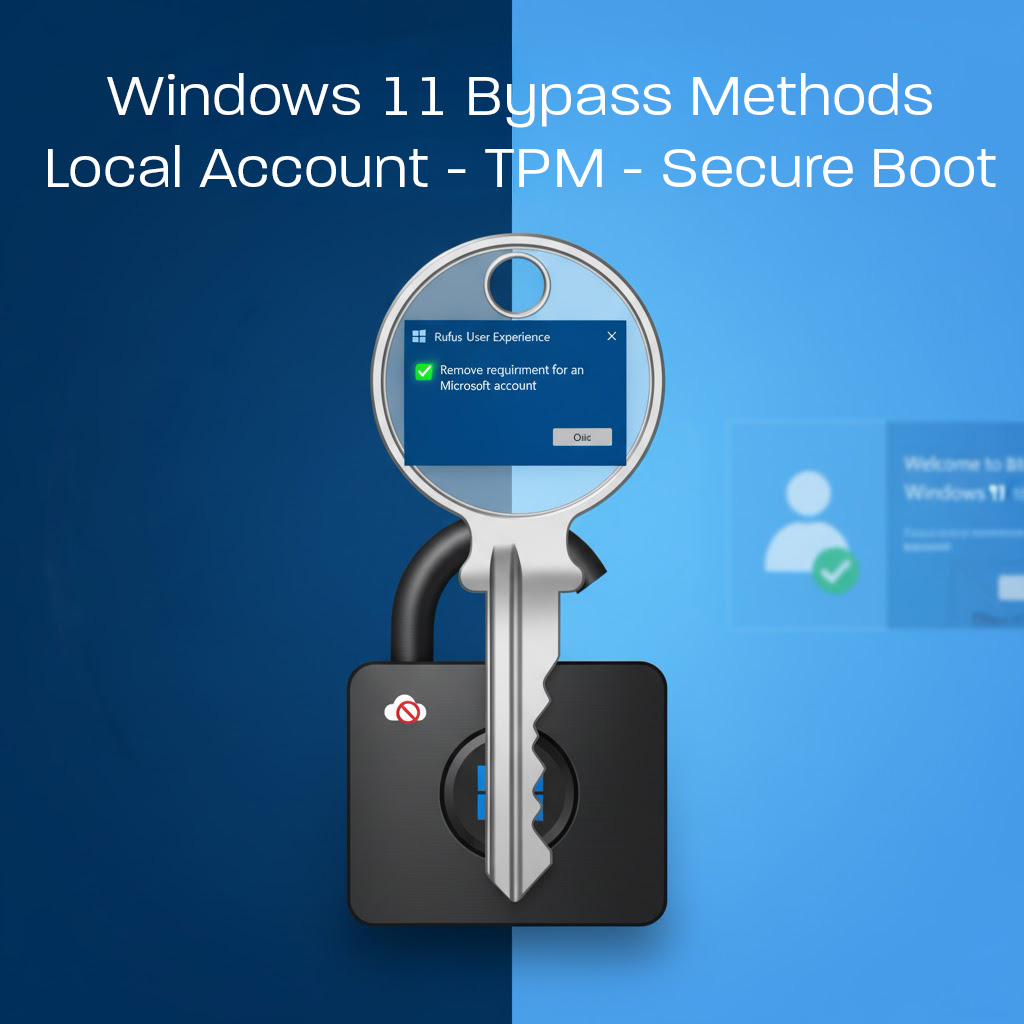
How to Install Windows 11 with a Local Account and TPM Bypass Method (2026 Bypass Guide)
Microsoft has made it increasingly difficult to install Windows 11 without a Microsoft Account. For privacy-conscious users or IT professionals setting up offline machines, this restriction is a major hurdle.
Which Method Do I Need?
- I just want a Local Account: Use Method 1. It is the fastest way to skip the online sign-in on any standard PC.
- My PC is “Unsupported” (TPM/CPU Errors): Use Method 2 (Rufus). You need to patch the installer to ignore hardware requirements and the account check.
Method 1: The Quickest Fix (Command Line)
Best for: Standard PCs stuck at the “Let’s connect you to a network” screen. Bypasses: Microsoft Account Requirement only.
If you are already in the Windows setup and cannot proceed without Wi-Fi, this is the instant solution.
- At the “Connect to a network” screen, press Shift + F10 on your keyboard to open a Command Prompt window.
- Type the following two commands, pressing Enter after each one:
cd oobebypassnro - Your computer will restart automatically.
- Crucial Step: Ensure your computer is disconnected from the internet (unplug the Ethernet cable or turn off your router temporarily).
- When you return to the network screen, you will see a new option: “I don’t have internet.”
- Click that, then select “Continue with limited setup” to create your local account.
Method 2: The “Total Bypass” (Rufus)
Best for: Old Hardware, “Unsupported” PCs, or Clean Installs. Bypasses: Microsoft Account + TPM 2.0 + Secure Boot + RAM Checks.
If Method 1 doesn’t work, or if your computer is failing the Windows 11 system requirements (TPM/CPU), you need to rebuild your USB installer.
- Download the Windows 11 ISO from the official Microsoft website.
- Download Rufus (a free USB bootable tool).
- Insert your USB drive (16GB+ recommended).
- Open Rufus and select your downloaded Windows 11 ISO.
- Click Start. A “Windows User Experience” dialog will appear.
- Check the following boxes:
- Remove requirement for 4GB+ RAM, Secure Boot, and TPM 2.0 (This fixes the hardware errors).
- Remove requirement for an online Microsoft account (This fixes the login).
- Create a local account with username (Optional: pre-sets your name).
- Let Rufus create the drive. When you boot from this USB, it will skip all checks automatically.
Your Rufus window should look similar to this:
Device:         [Your USB Drive (e.g., 16 GB)]
Boot selection: [Your Windows 11 ISO file name]
Image option:   Standard Windows Installation
Partition scheme: GPT
Target system:  UEFI (non CSM)
...
[Ready]
Method 3: The Manual Registry Hack (Advanced)
Best for: Troubleshooting hardware blocks without Rufus.
If the installer is blocking you due to hardware requirements (TPM/Secure Boot) and you cannot use Rufus, you can edit the Registry mid-installation.
- At the “Install Now” or language selection screen, press Shift + F10 to open Command Prompt.
- Type
regeditand press Enter. - Navigate to:
HKEY_LOCAL_MACHINE\SYSTEM\Setup - Right-click the Setup folder, select New > Key, and name it
LabConfig. - Inside
LabConfig, right-click and create the following DWORD (32-bit) Values:- Name:
BypassTPMCheck| Value:1 - Name:
BypassSecureBootCheck| Value:1 - Name:
BypassRAMCheck| Value:1
- Name:
- Close the Registry Editor and Command Prompt, then proceed with the installation.
Method 4: Advanced Automation (FlyOOBE)
Best for: IT Professionals and System Integrators.
For users who want to automate the OOBE (Out of Box Experience) customization without rebuilding the ISO, you can use specialized scripts like FlyOOBE.
- What it is: FlyOOBE is an open-source script by developer builtbybel that modifies the Windows setup environment on the fly.
- How to use it:
- Download the script and place it on a separate USB drive.
- When you reach the Windows Setup screen, insert the USB drive.
- Press Shift + F10 to open the command prompt.
- Navigate to your USB drive (e.g., type
D:thendirto find it). - Run the script to instantly strip bloatware and bypass account requirements.
The “Why”: Privacy, Surveillance, and The Kill Chain
Why is Microsoft pushing so hard to kill the Local Account?
The shift away from Local Accounts is not just about “user experience”—it is a fundamental shift in how the OS operates. By forcing a Microsoft Account, the operating system is tethered to a cloud identity, creating what privacy experts call a “Kill Chain.”
The Privacy Risk
When your login is tied to a Microsoft Account:
- BitLocker Encryption: Your drive encryption keys are automatically uploaded to Microsoft’s servers (stored in OneDrive).
- Surveillance: The OS can more easily sync telemetry data, tying your usage habits directly to your real identity rather than an anonymous hardware ID.
- Control: It allows for remote management features that many users explicitly do not want on a personal device.
Expert Analysis
Privacy advocate Rob Braxman (The Internet Privacy Guy) has highlighted this as a critical turning point in personal computing. The integration of TPM (Trusted Platform Module) and mandatory online accounts creates a surveillance infrastructure that is difficult to opt out of.
For users who refuse to accept these terms, the only remaining options are:
- Use the bypass methods above to maintain a “severed” offline Windows experience.
- Migrate to Linux. Distributions like Linux Mint or Ubuntu offer a modern experience without the corporate tethering.
Archived / Obsolete Methods
The following methods used to work but have been patched by Microsoft or are unreliable.
- The “Fake Email” Trick: Typing
test@test.comorno@thankyou.comto force an error. (Currently patched in 24H2). - Task Manager Kill: Using Task Manager to kill the “Network Connection Flow” process. (Often results in an unstable install).
OOBE\BYPASSNRO: This was a command-line trick and it is important you don’t allow your PC to connect via network cable or WiFi. You could pressShift+F10to open a command prompt during setup at the point where you enter your network details, type theOOBE\BYPASSNROcommand, and the PC would restart, allowing you to click “I don’t have internet,” which would then let you create a local account. This is being blocked when used as a single line.start ms-cxh:localonly: This is/was another command-line trick that would directly open the “create a local account” screen. Typically you would install and actually go online with this one. Then at the ‘Sign In’ or ‘Lets add your Microsoft Account’ screen, you would pressShift+F10(orShift+Fn+F10on some laptops) to get command prompt. Then typestart ms-cxh:localonlyto allow a local account creation. But this is also being blocked.
PS: It would also be a good idea to keep an older Windows 11 boot USB prior to this new restriction and install it offline.
Speculation from reputable sources say that having users sign in during the installation process, creates a permanent device ID (hardware identifiers) bond between your PC and Microsoft’s user/device master database along with the decryption keys which can be very bad for privacy/security.
Rob Braxman has a good video explaining some of these concerns: https://www.youtube.com/watch?v=t1eX_vvAlUc
This video talks about the TPM 2.0 chip, a requirement for Windows 11, as a surveillance tool rather than just a security feature. He claims that through features like BitLocker, Microsoft forces users to permanently link their computer’s unique hardware ID (Endorsement Key) to their Microsoft account [03:37]. The video alleges this allows Microsoft to route all security operations through its cloud [05:31] and use “remote attestation” to verify your hardware and software, potentially blocking other operating systems like Linux [10:04]. Rob concludes this system, combined with AI (Copilot) like Windows Recall [11:44], creates a “kill chain” to monitor user behavior and control their computers [13:52].