Migrating Files to Microsoft 365 Sharepoint - How Long Does It Take?
Uploading a few hundred gigabytes to SharePoint Online takes days, not hours, and the constraint is Microsoft's service limits rather than your broadband. This guide covers realistic transfer rates, a calculator that accounts for weekday throttling, why 500 GB of files can consume a terabyte of quota, and the file naming and sync limits that catch migrations out.
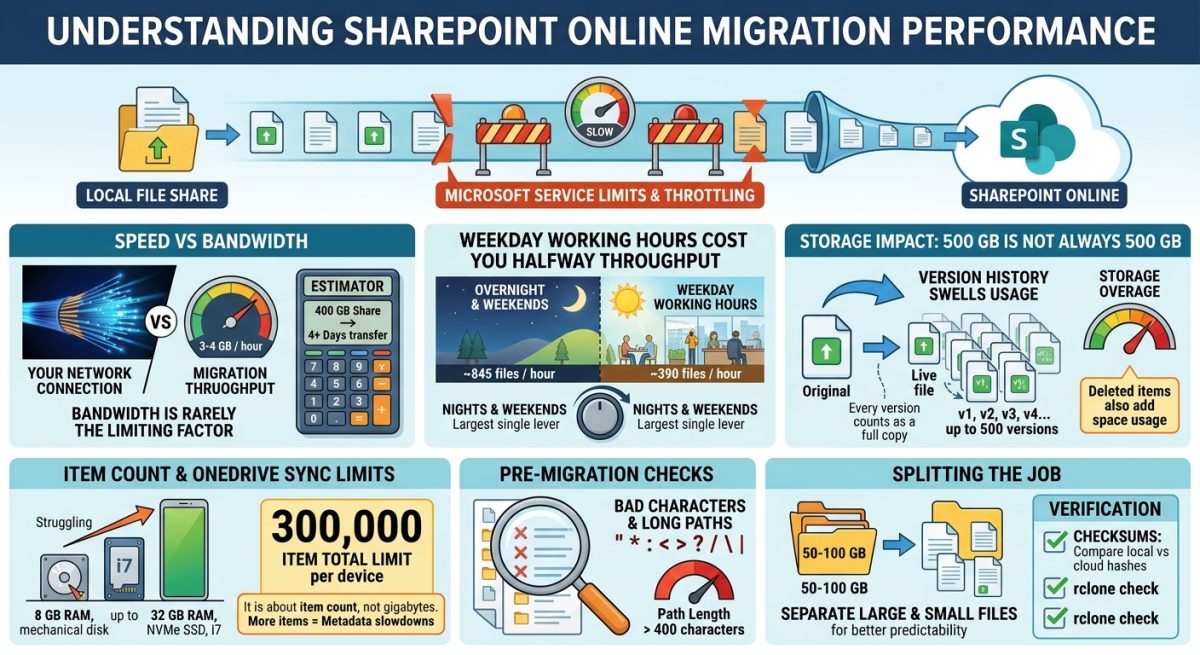
Moving a file share into SharePoint Online takes far longer than your internet connection suggests, and the storage it consumes at the other end grows well beyond the data you sent. Here is what governs both, with calculators for the timings and the long-term storage bill.
The short answer on speed
For a single migration job into Microsoft 365, plan for roughly 3 to 4 GB per hour, or 700 to 850 files per hour. A 400 GB file share holding 75,000 files takes about four and a half days of continuous transfer.
If that sounds slow for a business fibre line, it is. Bandwidth is almost never the limiting factor.
What actually sets the pace
SharePoint Online applies service protection limits that cap what any single account can do in a given period. Two separate limits matter during a migration.
The first is request volume. Every file involves its own set of operations, so a library of 75,000 files generates hundreds of thousands of requests regardless of how large those files are. This is why a job full of small documents crawls while a single large video uploads in seconds.
The second is data volume. Sustained throughput into a tenant is capped independently of the request count.
Whichever limit you meet first sets your speed. When you hit either, Microsoft responds by telling the client to pause and retry after a set interval. A properly written migration tool honours that instruction. Overriding it risks the account being blocked outright, or files being skipped or copied incompletely, so the slow and steady behaviour you see in the logs is the correct behaviour.
Working hours cost you half your throughput
Microsoft throttles more aggressively during weekday working hours to protect service performance across all tenants. In practice the difference is roughly:
- Overnight and at weekends: around 845 files per hour
- During weekday working hours: around 390 files per hour
The same job, on the same connection, with the same software, runs at more than double the speed outside working hours. If you have any control over scheduling, this is the largest single lever available to you, and it costs nothing.
Estimate your migration time
Set the size and file count of the data you need to move, and when you plan to start. The estimator steps through the job hour by hour, applying the slower rate during weekday working hours and the faster rate overnight and at weekends, so the start day and time change the answer materially.
Working hours are treated as Monday to Friday, 08:00 to 18:00, and the job is assumed to run continuously once started.
Migration time estimator
Rates are indicative, derived from observed migrations rather than published Microsoft figures. Your throughput will vary with tenant, file mix, source storage speed and how busy the service is. Treat the result as a planning figure, not a guarantee.
Try the same job starting Monday morning rather than Friday evening. The difference is usually the best part of a day.
The storage at the other end is bigger than you think
Speed is only half the problem. The 400 GB you upload will not occupy 400 GB in your tenant for long.
What you actually get
Every Microsoft 365 organisation shares a single pooled SharePoint quota: 1 TB per tenant plus 10 GB for every licensed user. A twenty-five-user business therefore has about 1.25 TB in total, shared across every SharePoint site and every Teams team, because Teams files live in SharePoint. OneDrive is a separate per-user pool and does not draw from it.
Why 400 GB becomes a terabyte
Version history is the usual culprit, and it is the most common reason a tenant runs out of space unexpectedly. Every saved version is stored in full and counts against your quota. There is no delta compression, so a 10 MB document edited fifty times occupies around 500 MB on its own, regardless of whether each edit changed one character or rewrote the file.
AutoSave makes this accumulate quickly. A document being actively worked on can generate dozens of versions in an afternoon without anyone noticing, and the more people editing, the faster it grows. A shared deck updated four times a week will pass 200 versions inside a year.
The legacy default kept up to 500 versions per file, and most libraries created before Microsoft changed the default are still running that way. Tenants that have run for years without a deliberate version policy routinely find that version history alone exceeds their live file storage several times over. It is not unusual to see a site holding 10 GB of visible files consuming 50 GB or more of the tenant pool.
Microsoft's newer automatic, or intelligent, versioning thins older versions on a sliding scale instead of keeping a fixed count: everything from the last 30 days, hourly versions from 30 to 60 days, daily from 60 to 180 days, and weekly beyond that, up to a ceiling of 500. Microsoft reports storage reductions of around 96% over six months compared with the count-based limit.
Two things about that setting catch people out. It applies only to new libraries and new OneDrive accounts, not to anything you already have. And version limits are not retrospective: lowering the limit does not delete existing versions, which are trimmed only gradually as files are next edited. Reclaiming space from years of accumulated versions needs a deliberate bulk trim.
The recycle bin adds to this. Deleted items sit in a first-stage bin for 93 days and then a second-stage bin for a further 93 days, counting against your quota throughout.
Project your storage over the next few years
This estimator projects what a migrated file share consumes as versions accumulate. It assumes the underlying data grows about 20% a year, which is typical for an office file share, and scales version growth with the number of people editing.
Storage growth estimator
A projection, not a forecast. Version growth depends heavily on how your people actually work, and a library of PDFs behaves nothing like a library of shared spreadsheets. Use it to compare scenarios — particularly the difference between the three version policies — rather than as a budget figure. Overage is costed at $0.20 per GB per month; check current pricing in your own admin centre.
The single most useful thing that calculator shows is the gap between the version policies. Switching the same data from the legacy 500-version default to automatic versioning typically removes most of the projected overage, and it costs nothing.
What going over costs
Because every licensed user adds 10 GB, adding seats sometimes works out cheaper than buying raw storage, though not usually by enough to justify licences nobody needs. For genuinely inactive data, archiving elsewhere is almost always cheaper than paying SharePoint's per-gigabyte rate to store files nobody opens.
The practical point is that a migration decision made on speed alone can leave you with a recurring bill. Decide what should not move at all before you start, and set the version policy before people begin editing, rather than uploading everything and paying to store it.
File names and paths that will fail
A migration that stalls part way through, or produces a log full of invalidRequest lines, has usually hit naming problems rather than throttling. These are worth finding before you start, not after, and the failure count in the log is almost never the number of things you actually have to fix.
The limits
- 400 characters for the entire decoded path, including the file name. This counts the site, library, every folder and the file itself, but not the tenant domain.
- 255 characters for any single file or folder name.
- 260 characters is the local Windows path limit, which bites first when files are synced rather than uploaded. Clearing one limit does not mean you have cleared the other.
- 520 characters for the OneDrive root folder plus the relative path, on synced libraries.
The 400-character limit applies to the encoded URL, so spaces and special characters count for more than they appear to. A space becomes three characters once encoded. A path that looks comfortably short in File Explorer can be well over the limit by the time SharePoint sees it.
Characters and names that are rejected
These characters are not permitted anywhere in a file or folder name: " * : < > ? / \ |. Nor are leading or trailing spaces, or a trailing full stop. Neither are the reserved names .lock, CON, PRN, AUX, NUL, COM0 to COM9, LPT0 to LPT9, _vti_, desktop.ini, or anything beginning with ~$.
Two pieces of widely repeated guidance are out of date. The hash and ampersand characters were blocked once and are now supported. So are leading full stops and two consecutive full stops mid-name — both were SharePoint Server rules that no longer apply to SharePoint Online, and a file called agenda..docx migrates without complaint. Screening for either produces a large pile of false positives, which matters more than it sounds; see below.
Where these names actually come from
Almost every rejected name we see has the same origin: content that passed through a Mac at some point. On macOS a forward slash typed in Finder is legal, and stored underneath as a colon. Years later that surfaces as a SharePoint failure, and it is worth knowing what the character originally meant before you rename anything.
| What the log shows | The real character | What it usually was |
|---|---|---|
| %3A | : | A slash typed on a Mac — a date, a financial year, a colour pair, a brand name like Money20/20 |
| %7C | | | A separator in a campaign or asset file name |
| %2A | * | A prefix or suffix used to sort a folder to the top of a list |
| %3F | ? | A genuine question mark in a session title or email subject |
| %2E at the end | trailing . | An abbreviated company name — Co. or Inc. — or a sentence typed as a folder name |
| Leading space | Copy and paste into Explorer or Finder, invisible in both |
Migration logs often display these percent-encoded, because the tool escapes them when building the destination URL. Check what is actually on disk before writing a find-and-replace, because the two are not always the same thing.
Note the practical consequence of the slash-to-colon story: if you replace a colon with a hyphen, someone looking for that file in six months will be searching for the slash version. Tell the people who own the content what the mapping was.
One bad folder name blocks everything beneath it
Clear the junk before you count the problems
Two kinds of macOS metadata inflate a migration badly, and neither is visible in File Explorer unless hidden files are shown.
__MACOSX folders appear when a Mac-created ZIP is extracted on Windows. The Mac stores its resource forks in a parallel tree inside the archive, and Windows unpacks it as a real folder full of files nobody will ever open. AppleDouble files, named ._something, are the same metadata written directly to a non-Mac filesystem.
Both are safe to remove for any modern file format, because the document itself lives entirely in the data fork. Microsoft's own documentation notes that files used by the local computer, such as desktop.ini or .ds_store, do not normally sync, and that the sync client deletes the cloud copy if a migration puts one there. Migrating them burns transfer time and item count to upload content that will be stripped out later.
On a 96,000-item share we cleaned recently, this was the single largest category by a wide margin:
A rule that flags thousands is describing a habit
This is the most useful thing to carry into any audit. Our first pass on that share reported 3,193 problems. After filtering the junk and dropping two rules that were wrong — leading full stops, which SharePoint Online accepts, and double spaces, which are perfectly legal — the real figure was 184. Ninety-four per cent of the initial finding was noise.
If a check flags thousands of items, the overwhelming likelihood is that it has found a naming habit rather than a migration blocker. Somebody has been typing two spaces since 2011. Verify the rule against Microsoft's current published restrictions before you rename anything, because renaming files that were never broken destroys the link between what people search for and what they find.
Auditing the share
Start with the junk, because it changes every subsequent count:
Then the illegal characters, including the percent-encoded forms that some tools write to disk:
Fixing what you find
Snapshot first
Everything below rewrites the source. Take a NAS snapshot or a backup before any bulk rename, and keep a CSV of every change so a rename can be traced later.
Remove the junk
Delete the __MACOSX trees and AppleDouble files, or add them to your migration tool's exclusion list if you would rather not touch the source at all. Either way they should not reach SharePoint.
Rename deepest first
Fix child items before their parents, or renaming a folder invalidates every path you were about to work on. Sort by path depth descending and work upwards.
Flatten before you rename for length
Removing one or two levels of nesting clears far more long paths than renaming individual files, and it is quicker. Duplicated levels — a folder containing another folder of nearly the same name — are common in migrated shares and cost 40 characters for nothing.
Re-scan until it reports zero
A clean second pass is the only evidence the fix worked. It also catches collisions, where two different names have been normalised into the same one.
Most migration tools will substitute invalid characters for you — SharePoint Migration Tool and Migration Manager both do, and ShareGate has an explicit option — but they choose the replacement, and the mapping is rarely what you would have picked. Cleaning at source gives you names you chose and a record of exactly what changed.
Splitting the job into batches
Running 400 GB as one job gives you a single point of failure and no useful progress reporting. Splitting it into batches is better on both counts, and the way you split matters.
Separate large files from small ones
Small files are constrained by request limits; large files by data volume. Running them as separate jobs means each is bound by a single constraint, which makes progress predictable and lets you schedule the request-heavy batch into a weekend.
Size each batch to finish inside a day or two
Roughly 50 to 100 GB per batch is a reasonable target. Every completed batch is a restart point you do not have to repeat, and a milestone you can report.
Structure for the sync client, not just for storage
How you split libraries during migration determines how well OneDrive behaves afterwards. Item counts, not gigabytes, are what degrade sync performance, so plan the destination structure around them from the start rather than reorganising later.
Move the least active data first
Archive and reference material can migrate while people are still working on the old share. Leave live working folders until last, so the final cutover moves the smallest possible amount of data.
Be aware of the browser limits too, if anyone is tempted to move content by hand: copying or moving through the SharePoint web interface caps out at 100 GB, 30,000 files, and 15 GB per file. A single site can hold up to 25 TB, and no individual file may exceed 250 GB.
Item count is what breaks OneDrive, not size
Once the data has landed, a second and quite separate limit takes over. SharePoint itself will happily store 30 million documents in a single library. The OneDrive sync client on each user's computer will not cope with anything like that, and the constraint is the number of items rather than how many gigabytes they occupy.
Microsoft's long-standing guidance is to sync no more than 300,000 items per device in total. Three details about that number catch people out:
- It is a per-device total across everything being synced, not a per-library figure. A user's own OneDrive plus four synced SharePoint libraries all count towards the same budget.
- It counts items the user cannot see. If a synced library holds 400,000 files and permissions limit that user to 2,000 of them, the full library still weighs on sync performance.
- Files On-Demand does not exempt you. The recommendation applies even with Files On-Demand enabled, or when syncing only selected folders, because the client still builds and maintains a local index entry for every item regardless of whether the file contents are downloaded.
That last point is the one most often misunderstood. Files On-Demand solves a disk space problem. It does not solve a metadata problem, and metadata is what makes the sync client struggle.
What a healthy device looks like
The supported limit and the comfortable limit are not the same thing, and they are not the same on every machine. Microsoft publishes one number for everybody; in practice an eight-gigabyte laptop with a mechanical disk gives up long before a current workstation does.
The figures below are field guidance rather than Microsoft's, offered as a starting point for deciding which machines can sync what. Only the 300,000 ceiling is Microsoft's own.
| Device | Comfortable | Workable | Trouble above |
|---|---|---|---|
| 8 GB RAM, mechanical hard disk | 20,000 | 50,000 | 75,000 |
| 8 GB RAM, SSD, i3 or equivalent | 50,000 | 100,000 | 150,000 |
| 16 GB RAM, SSD, i5 or Ryzen 5 | 100,000 | 250,000 | 300,000 |
| 32 GB RAM, NVMe SSD, i7 or Ryzen 7 | 250,000 | 300,000 | 300,000 |
Note that the top row does not go higher than Microsoft's ceiling. Better hardware makes a given item count more comfortable; it does not raise the supported limit unless the device also qualifies for the million-item rollout described above.
Of the three components, storage matters most. Moving a struggling machine from a mechanical disk to an SSD does more for sync than any other single change, because the client spends most of its effort on small random reads and writes against its local database. Memory comes next, since the index has to be held somewhere. Processor matters least, and mainly during the initial sync and after large batches of changes.
Symptoms of a device carrying too many items are consistent: long spells stuck on "Processing changes", a sync process using noticeable CPU or memory at idle, edits taking minutes rather than seconds to reach colleagues, and files that quietly never upload.
How many files should one library hold?
Work backwards from the weakest machine that will sync it. If a library is synced by everyone in the business, its item count has to suit the oldest laptop in the building, not the newest.
As a working target, keep any library that will be synced widely under 100,000 items, and treat 300,000 as an absolute ceiling across everything a single device syncs. Libraries nobody syncs can be far larger, because browser access is not subject to these limits at all — which is exactly why archive material belongs in a library that is deliberately never synced.
Note that the well-known 5,000-item threshold is a separate issue. That one governs how many items a browser view can return before it degrades, and is solved with indexed columns, filters and views rather than by changing how anything syncs. Keeping individual folders to a few thousand items each avoids it.
Where the broadband connection comes into it
Bandwidth matters far less for day-to-day sync than most people assume, but it is not irrelevant. It matters in specific places.
- Initial sync is the exception. The first full pass on a new device genuinely is bandwidth-bound, and on a slow line it can take days. Steady-state sync afterwards moves only small changes and needs very little.
- Latency and packet loss beat raw speed. A lossy or high-latency connection degrades the sync experience even at gigabit speeds, because the client makes many small round trips rather than a few large transfers. A stable 50 Mbps line usually outperforms an unstable 500 Mbps one.
- Upload is the half that hurts. Asymmetric connections are common in the UK, and a typical FTTC line offering around 76 Mbps down but 20 Mbps up gives every user in the office a narrow shared channel for saving files.
- Files On-Demand trades disk for network. With it enabled, opening a file is a download. On a solid connection that is a good trade; on a weak or high-latency one it turns every document open into a wait. Let the connection decide the setting rather than applying it everywhere by default.
- Multiple machines multiply the effect. Thirty clients syncing the same large library are thirty clients making requests against the same tenant, which consumes both the shared line and the tenant's request budget. This is a common cause of an office-wide slowdown that looks like a broadband fault and is not one.
Two settings are worth checking on any machine that syncs badly. The OneDrive client has its own upload and download rate limits under Settings, then Network, which are sometimes left restricted. And Microsoft 365 traffic should not be routed through a VPN back to the office; split tunnelling for those endpoints is Microsoft's recommendation and often resolves sync complaints on its own.
Verifying that everything arrived
A migration report saying "complete" is not the same as the data being correct. Verify in three stages, cheapest first.
Counts and sizes
Start here, because it catches most problems in seconds. Take totals at source:
Then compare against the library's storage metrics in the SharePoint admin centre. A shortfall in the count points at rejected names or long paths; a shortfall in bytes with a matching count points at truncated or failed uploads.
Checksums
For anything that genuinely matters, hash the source before you migrate and keep the output:
SHA-256 is the right choice over CRC32 here. CRC is an error-detection check designed for transmission noise, not for confirming that two copies of a document are identical, and its collision behaviour makes it unsuitable for verification you intend to rely on. The performance difference is irrelevant next to the days the migration itself takes.
Comparing against the cloud copy
The awkward part is that SharePoint does not expose SHA-256 for stored files. Microsoft Graph returns a content hash for every file in the quickXorHash field, which is Microsoft's own 160-bit algorithm and the only hash guaranteed to be available for both business and consumer accounts. It is a real content hash, so it is genuinely useful for verification, but you cannot compare it to a SHA-256 you generated locally.
Two practical routes. Either compute quickXorHash locally using one of the open implementations of Microsoft's published algorithm and compare like for like, or use a tool that already handles it. Rclone supports the OneDrive and SharePoint backends and will compare local files against the cloud copy by checksum:
This reads both sides and reports anything that does not match, which is exactly what you want at the end of a migration. On a large library it takes a while, so run it overnight after the transfer has finished rather than alongside it.
Whichever route you take, keep the verification output. If a file turns out to be missing or corrupt six months later, evidence that it was verified at cutover is worth having.
Tracking who deleted, moved or copied a file
Once people are working in SharePoint, the question that eventually arrives is some version of "where did that folder go?". The answer lives in the audit log, and the good news is that you almost certainly do not need to switch anything on.
Microsoft Purview Audit (Standard) is enabled by default and records SharePoint and OneDrive activity automatically. This is included with Business Basic, Business Standard and Business Premium as well as the enterprise plans, so it applies to most small businesses without any licence change. What you need is the right role to search it, not a setting to enable. If the portal does prompt you to turn auditing on, do so — but on most tenants the data is already being collected and simply has never been looked at.
One thing that trips people up: the classic SharePoint site-level audit reports have been retired. If you go looking in site settings you will not find what you need. Everything now flows into the tenant-wide unified audit log.
Running a search
Open the audit search
Sign in at purview.microsoft.com, then go to Solutions and select Audit. You need an appropriate role, such as Audit Logs or View-Only Audit Logs, which is not granted to every administrator by default.
Set the date range
Choose a window around when you think the change happened, and remember that new events take anywhere from 30 minutes to 24 hours to become searchable. Something that happened an hour ago may not appear yet.
Filter by activity
Under file and page activities, pick the operations you care about. Filtering by user, site or the specific file makes the results far easier to read than a broad search across everything.
Export the results
Export to CSV from the portal. Keep the export if the matter is likely to go anywhere formal, because the underlying log will age out.
The activities worth knowing
- Deleted file — the file went to the recycle bin.
- Deleted file from first-stage recycle bin and Deleted file from second-stage recycle bin — the second of these means it is permanently gone.
- Moved file and Copied file — both record the source and destination, which is what you want when content appears somewhere it should not be.
- Renamed file — frequently the real explanation behind a "missing" file.
- Modified file, Accessed file and Downloaded file — the ones that matter when someone is leaving and you want to know what they touched.
For anything beyond a one-off lookup, PowerShell is quicker. Connect to Exchange Online, then:
What your licence gives you
The searching itself is included with every business plan. The length of the window is what varies, and it depends on licensing rather than on any setting you control in SharePoint.
- Audit (Standard) is included with Microsoft 365 Business Basic, Business Standard and Business Premium, as well as the enterprise plans. It is on by default and retains records for 180 days. Records generated before 17 October 2023 were kept for only 90. Everything described above — the portal search, the PowerShell, the CSV export, all the file activities — works on Business Standard with nothing extra to buy.
- Audit (Premium) adds one-year retention by default, custom retention policies, and up to ten years with a further add-on. It requires E5, or a Purview add-on licence assigned to each user whose activity you want retained for longer.
Business Premium does not include Audit (Premium) on its own, which surprises people. Microsoft introduced a Purview Suite add-on in September 2025 aimed at Business Premium tenants between 25 and 300 users, at roughly ten US dollars per user per month, which unlocks it without a full move to E5. On Business Standard that route is generally not available, so the practical choices are to work within 180 days or to export events yourself.
A hundred and eighty days sounds generous until someone asks about a file that disappeared last spring. If your sector has retention obligations, or you have ever needed to reconstruct what a departing employee did, price the upgrade. For anything longer, or for a tenant that cannot get the add-on, export events to your own storage through the Office 365 Management Activity API rather than relying on Microsoft's window.
Do not mistake the audit log for a backup. It tells you what happened and who did it; it does not bring the file back. Recovery comes from the recycle bin, version history, or the library restore option, all of which have their own time limits. The audit log is how you find out which of those to reach for, and how quickly you need to move.
Backing up SharePoint, and why you need to
This is the part of a migration that most often goes unplanned. Data moves from a file server that was being backed up nightly into a cloud service that, in most people's minds, backs itself up. It does not.
Microsoft operates a shared responsibility model, and it is stated plainly in the terms of service. Microsoft is responsible for keeping the service running: the hardware, the network, the datacentres, and the replication between them. You are responsible for the data inside it. That replication exists to keep SharePoint available if a datacentre fails. It does nothing about content that is deleted, overwritten or encrypted, because from the platform's point of view those are legitimate actions performed by an authorised account.
What the native tools cover, and where they stop
SharePoint does include real protections, and for everyday accidents they are usually enough:
- The recycle bin, in two stages of 93 days each.
- Version history, for recovering an earlier copy of a file that still exists.
- Restore this library, which rolls a library back to a point in the last 30 days.
- Deleted site retention, keeping a removed site for 93 days.
Every one of those shares three weaknesses. They are all time-bound. They all live inside the same tenant. And they can all be shortened, emptied or bypassed by anyone with sufficient privilege. Version history in particular dies with the file: purge the file from the second-stage recycle bin and every version goes with it.
The scenarios that defeat them
Reduce the blast radius first
Backup is the safety net, not the first control. Several things make the scenarios above far less likely, and they cost nothing but attention:
- Keep global administrators to a minimum — ideally two or three, with phishing-resistant multi-factor authentication, separate accounts for admin work, and a documented break-glass account. Just-in-time elevation is better still where your licensing supports it.
- Lock a retention policy. A Purview retention policy keeps content in a preservation hold even when a user deletes it, and applying Preservation Lock makes that policy immutable: it can be extended but not disabled or reduced, by anyone, including a global administrator. It is the strongest native control against a compromised admin. Treat it with respect — the same immutability means you cannot undo it, and held content continues to consume storage.
- Scope applications and agents narrowly. Grant access to specific sites rather than the whole tenant wherever the integration supports it, and review what your app registrations can actually reach. This applies just as much to AI tooling connected to Microsoft 365 as to traditional scripts.
- Alert on mass deletion. Purview alert policies can flag unusual volumes of file deletion, which turns a discovery six weeks later into a phone call the same afternoon.
Keeping an independent copy
None of the above produces a restorable copy outside the tenant. For that there are three routes, and they are not equivalent.
Microsoft 365 Backup is Microsoft's own service, charged on a pay-as-you-go basis at around $0.15 per GB per month of protected content, with restores free. Retention is one year by default, and Microsoft has been rolling out configurable recovery windows, so check what is currently available. It restores quickly and there is no separate vendor to manage. The significant caveat is that the data never leaves Microsoft's cloud, so it does not satisfy the "separate from the thing that failed" principle, and it will not help if the problem is the platform itself.
A third-party backup service holds your data with a different provider, under different credentials, usually with immutable copies. This is the conventional answer and a sound one, at a per-user or per-gigabyte cost.
A local copy to your own NAS is the only option that is genuinely independent of Microsoft, and it is often the right choice for a smaller business that already has hardware on site. A UniFi UNAS or similar appliance gives you a copy you control, with your own retention, no recurring per-gigabyte fee, and something to restore from even if the tenant is entirely unreachable.
Four further points on the local route.
- Enable snapshots, or you have a mirror rather than a backup. A job that syncs SharePoint down to a NAS will faithfully replicate whatever it finds, including deletions and encrypted files. Delete a folder on Monday and the next run removes it from the NAS too. Snapshots are what break that chain: they hold a read-only point-in-time state that the sync cannot overwrite, so you can roll back to the day before the damage. Set the schedule and retention deliberately — daily snapshots kept for at least as long as it realistically takes someone to notice a deletion, which is usually longer than a week. Immutable or locked snapshots are better again, because they cannot be removed even by someone who reaches the NAS.
- RAID is not a backup. It survives a failed disk, not a deletion, a mistake or an encryption event.
- Keep a second copy elsewhere. Offsite or offline, so that fire, theft or a flood in the comms room does not take the only independent copy with it.
- Plan the seed and test the restore. The initial copy is subject to exactly the same throttling described earlier in this article, so pulling 400 GB down takes days rather than hours — schedule it across a weekend and let the incrementals run quietly afterwards. Then restore something from it before you need to, because an untested backup is a hope rather than a plan.
The usual framing still applies: three copies of the data, on two different kinds of storage, with one held somewhere else entirely. A tenant with only its recycle bin has one copy.
Is SharePoint the right platform in the first place?
Worth a sanity check, whether you are about to migrate or already have. For most businesses already paying for Microsoft 365 the answer is yes, but the reasons usually given are the weakest ones, and there are real situations where it is the wrong fit.
The argument that actually holds
Cost is the obvious point and the least interesting one. SharePoint is included in Business Standard and Business Premium, so anything else is a second bill for something you already own. That matters, but it is not decisive on its own.
The stronger argument is that everything else you rely on is already wired into it. Teams channels are SharePoint document libraries underneath. Your retention policies, sensitivity labels, data loss prevention rules, conditional access and eDiscovery all live in Purview and Entra ID and apply to SharePoint natively. Bolt a third-party store alongside and you have two permission models, two audit trails, and a gap between them that nobody owns. That is usually a worse problem than any of SharePoint's actual flaws.
The decisive argument, if your people work in Excel, is co-authoring. Microsoft is explicit that to co-author a workbook it needs to sit on OneDrive, OneDrive for Business or SharePoint in Microsoft 365; files stored elsewhere produce the "locked for editing" error, and Microsoft's support documentation names server paths, Dropbox, Box and Google Drive among the locations that do not support it. Live cell-by-cell merging in desktop Excel is a proprietary protocol tied to Microsoft's own storage.
Microsoft has partnered with providers including Box, Citrix ShareFile, Dropbox and Egnyte so that files held there can be co-authored in Microsoft 365 for the web, and its documentation is genuinely inconsistent about how far that extends to the desktop apps — one page says Dropbox works on web, desktop and mobile, another lists Dropbox and Box among the locations that do not support co-authoring at all. What people report in practice is the browser working and the desktop app locking the file. Since Excel for the web has no Power Query refresh, no VBA and limited pivot table handling, that is not a substitute for a team living in desktop Excel.
The alternatives, honestly
| Platform | Model | Strengths | Trade-offs |
|---|---|---|---|
| Google Workspace | Full suite replacement | Excellent sharing and search; strong external collaboration; Sheets co-editing is arguably better than Excel's | Only sensible if you leave Microsoft 365 entirely; .xlsx round-tripping mangles complex formulas, macros and Power Query |
| Dropbox Business | Sync-first storage | The best desktop sync engine available; block-level delta sync; handles large files well | A second bill on top of storage you already have; weaker governance than Box or Egnyte |
| Box | Cloud content management | Strong governance, retention and classification; well established in regulated sectors | Expensive, with the better governance and security controls on higher tiers |
| Egnyte | Hybrid cloud with on-premises cache | Genuinely good hybrid model — local file server speed with cloud sync; strong in construction, architecture and media | Storage add-ons and implementation push real cost well above the headline |
| Tresorit / Proton Drive | End-to-end encrypted, EU or Swiss hosted | Zero-knowledge encryption and European data residency; a real answer to "can Microsoft read our files" | Encryption breaks server-side search and Office co-authoring; collaboration features are limited |
| Nextcloud | Open source, self-hosted or EU-hosted | Full data control, no per-user licence, straightforward UK or EU hosting; real co-editing via OnlyOffice or Collabora | You own patching, backup and uptime; macros and Power Query do not survive the alternative editors |
| NAS with sync | On-premises capital purchase | Cheap at high storage volumes; fast on the local network | You own backup, disaster recovery and remote access security; not a cloud replacement |
When SharePoint genuinely is the wrong answer
- Large binary files. Architecture practices with Revit models, video production, anyone routinely handling multi-gigabyte files. SharePoint does not do proper block-level delta sync for these, so a small change re-uploads a great deal. Egnyte and Dropbox are meaningfully better here, and this is the most common legitimate reason to move.
- Sovereignty or zero-knowledge requirements. If a contract or regulator requires data to sit outside Microsoft's reach, the answer is Tresorit, Proton Drive or European-hosted Nextcloud, not SharePoint with more settings applied.
- Very deep migrated folder structures. The path length limit and the view threshold bite hard on twenty years of nested folders. This is usually fixable by restructuring across several sites rather than by replatforming, but it is real work either way.
- Heavy external collaboration. Guest access through Entra B2B works, but it is clunkier than Box or Dropbox for clients who just want a link that opens.
One related point worth raising with any client who reaches for a spreadsheet as shared infrastructure. If the workbook in question is really a database being maintained by a dozen people — a project tracker, a client list, a booking sheet — the honest answer is that Excel is the wrong tool wherever it is stored. Microsoft Lists is included in the licence and handles concurrent structured data far better. Co-authoring solves two people building a model together; it does not solve twelve people maintaining a record set.
The summary, then: stay on SharePoint unless you fall into the large-binary or sovereignty categories. If the impulse to leave comes from sync frustration or a painful migration, check whether the problem is the platform or how it was set up, because badly architected tenancies are common and far cheaper to fix than to replace. And whichever platform you land on, the backup gap described above applies just the same.
Setting expectations before you start
Most complaints about migrations come from the gap between what people expect and what the platform allows. Tell users up front that a few hundred gigabytes takes days rather than hours, that the pace is set by Microsoft rather than by a fault at either end, and that no action is needed from them. Report progress by data volume as well as file count, because file-count percentages flatter a migration when the largest files sit at the end of the queue. And give a window rather than a single finish time.
Planning a move to Microsoft 365?
We scope, schedule and run SharePoint and OneDrive migrations, including the naming clean-up and verification most projects skip.
See also our Office 365 migration and IT support services.